
Transaction Reports
Complete view of all payment transactions across every channel. Monitor sales, reconcile payments, and analyze business performance.
The Transaction Reports page provides a complete view of all your payment transactions across every channel. Use this report to monitor sales, reconcile payments, and analyze your business performance.
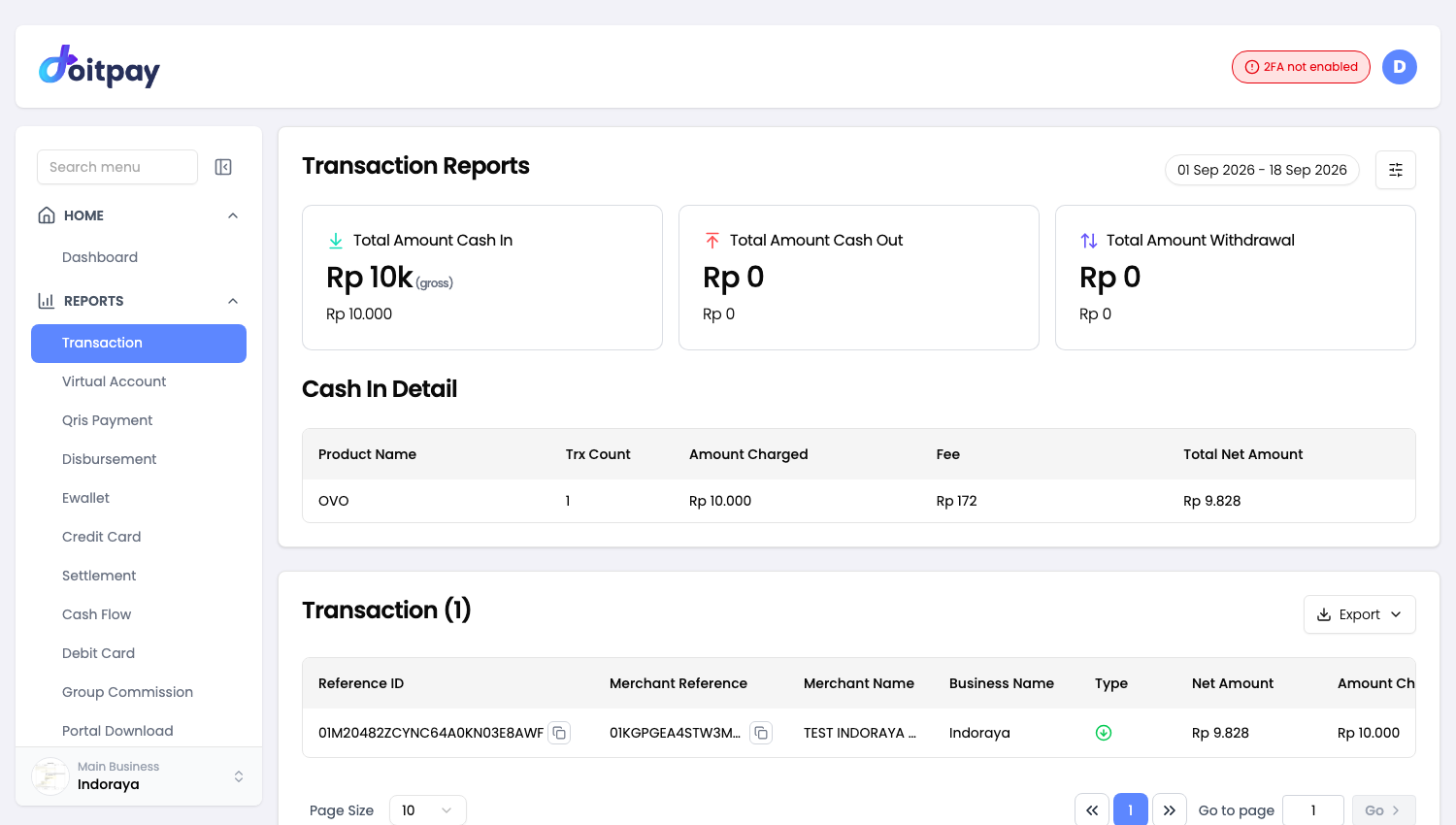
Accessing Transaction Reports
Navigate to REPORTS > Transaction from the sidebar.
Understanding the Summary Section
At the top of the page, three cards summarize your transaction activity:
| Card | What it shows | Example |
|---|---|---|
| Total Amount Cash In | Money received from customers (gross) | 83.86M (Rp 83,864,012) |
| Total Amount Cash Out | Money sent out (disbursements) | 1.84B (Rp 1,840,142,249) |
| Total Amount Withdrawal | Withdrawals from your account | 10k (Rp 10,000) |
Tip
Compare Cash In vs Cash Out to understand your daily cash flow at a glance. Large values are abbreviated (M for millions, B for billions, k for thousands) with the full Rupiah amount shown below.
Cash In Detail Table
This table breaks down incoming payments by product/channel:
| Column | Description |
|---|---|
| Product Name | Payment method (QRIS, Bayarind Cards, MANDIRI_VA, CARD, DANA, etc.) |
| Trx Count | Number of transactions |
| Amount Charged | Total amount customers paid |
| Fee | Transaction fees |
| Total Net Amount | Your earnings after fees |
Use this for: Identifying which payment channels are most popular with your customers and comparing fee structures across channels.
Transaction List
The main table shows individual transactions with these columns:
| Column | What to look for |
|---|---|
| Reference ID | Doitpay's unique ID, use this when contacting support |
| Merchant Reference | Your internal reference, matches your system |
| Merchant Name | Which merchant received the payment |
| Type | Transaction direction (in/out) |
| Net Amount | What you receive after fees |
| Amount Charged | What the customer paid |
| Fee | Processing fee |
| Status | Current state of the transaction |
| Payment Method | How the customer paid |
| Payment Date | When payment was made |
| Settlement Date | When funds will be/were settled |
Filtering Your Data
By Date Range
- Click the date range button (e.g., "01 Dec 2025 - 03 Mar 2026")
- Select your desired start and end dates
- Click Apply to filter
By Page Size
Use the Page Size dropdown at the bottom to show 10, 25, or 50 records per page.
Exporting Data
Click Export in the toolbar and choose a format.
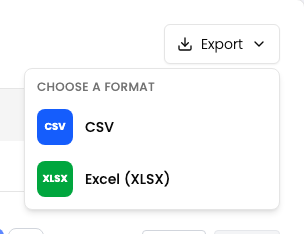
| Format | Best for |
|---|---|
| CSV | Plain data, importing into another tool, very large date ranges |
| Excel (XLSX) | Opening straight in Excel or Google Sheets with formatting preserved |
Use this to export your transaction data.
The export matches the filters you have applied on the page, so set your date range and any other filters first.
The file is prepared in the background instead of downloading straight away. After you choose a format, the dashboard opens Portal Download where the job appears. When its status shows COMPLETED, click Download on that row.
Filters travel with the export
The file matches what the table shows. If the table is filtered to one status or channel, the file contains only those rows. Clear your filters first if you want everything.
Understanding Transaction Status
| Status | Meaning | Action needed |
|---|---|---|
| Success | Payment completed | None, funds will be settled |
| Pending | Being processed | Wait for completion |
| Failed | Payment did not complete | Check with customer if retry needed |
| Expired | Payment window closed | Customer needs to initiate new payment |
| Refunded | Money returned to customer | Verify refund was intentional |
Common Tasks
Find a specific transaction
- Note the Reference ID or Merchant Reference
- Or export the report and search in spreadsheet software
Check why a transaction failed
- Locate the transaction in the list
- Note the Status and Payment Method
- Check the Payment Date, it may have expired
- Contact support with the Reference ID if unclear
Reconcile with your system
- Export transactions for your desired date range
- Match Merchant Reference with your internal records
- Verify Amount Charged matches expected values
Common Questions
Q: Why is a transaction missing from my report?
Check that your date range includes the transaction date. Also verify you are looking at the correct merchant if you have multiple.
Q: What is the difference between Amount Charged and Net Amount?
Amount Charged is what the customer paid. Net Amount is what you receive after Doitpay's processing fees are deducted.
Q: When will my funds be settled?
Check the Settlement Date column. Funds are typically settled according to your agreed schedule (T+1, T+2, etc.).
Q: Can I void or refund a transaction from here?
This page is for viewing reports only. Contact your account manager for refund processing.