
Disbursement
Transfer funds from your Doitpay balance to any bank account in Indonesia for payouts, vendor payments, refunds, and more.
Disbursement allows you to transfer funds from your Doitpay balance to any bank account in Indonesia. Use this feature for payouts, vendor payments, refunds, or any other fund transfers.
When to Use Disbursement
- Paying vendors or suppliers
- Sending refunds to customers
- Distributing funds to partners or agents
- Payroll or commission payments
- Any bank transfer from your Doitpay balance
Accessing Disbursement
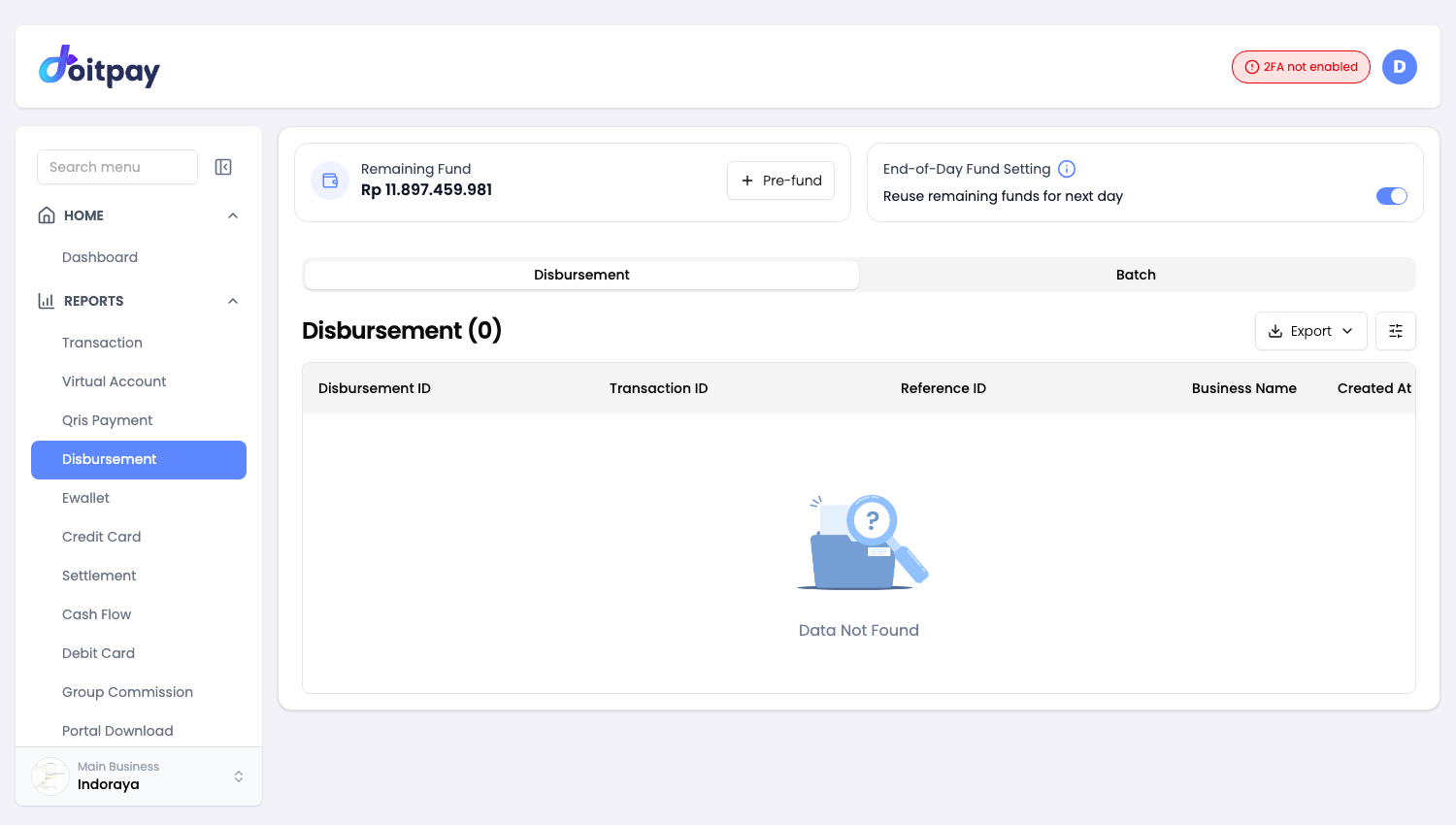
Navigate to REPORTS > Disbursement from the sidebar.
Before You Start
Important
You need sufficient balance to make disbursements. Check your available balance displayed at the top of the page. If your balance is low, use Deposit VA to add funds first.
Understanding the Page Layout
Balance Display
The Remaining Fund card shows your current disbursement balance. This is the maximum amount you can disburse. The End-of-Day Fund Setting card next to it controls what happens to that balance at the end of each day. See End-of-Day Fund Setting.
Tabs
- Disbursement: View and create individual transfers
- Batch: Upload multiple transfers at once
Creating a Single Disbursement
- Click the Disbursement button (or ensure you are on the Disbursement tab)
- Fill in the transfer details:
- Bank: Select the recipient's bank
- Account Number: Enter the bank account number
- Account Name: Enter the account holder's name
- Amount: Enter the transfer amount
- Description: Add a note for your reference (optional)
- Review the details carefully
- Click Submit to initiate the transfer
Warning
Double-check the account number before submitting. Transfers to incorrect accounts may be difficult to recover.
Creating Batch Disbursements
For multiple transfers at once:
- Click the Batch tab
- Click Upload or Download Template to get the CSV format
- Fill in your transfer details in the template
- Upload the completed file
- Review and confirm the batch
Use batch disbursement for: Payroll, multiple vendor payments, bulk refunds.
Adding Funds (Pre-fund)
If your balance is insufficient:
- Click the Pre-fund button
- Select a bank channel
- Enter the amount to add
- A Virtual Account number will be generated
- Transfer funds to that VA from your bank
- Balance updates automatically once payment is received
See Deposit VA for detailed instructions.
End-of-Day Fund Setting

The End-of-Day Fund Setting card decides what happens to the funds left in your disbursement balance at the daily cut-off of 22:00 WIB. Use the Reuse remaining funds for next day toggle to choose.
| Setting | What happens to your remaining funds |
|---|---|
| On | They stay in your Doitpay balance and are available again the next day |
| Off | They are refunded to your bank account on the next business day |
Hover over the info icon next to the title to see the same summary on the page.
Who can change this
Only Superadmin users can change the End-of-Day Fund Setting.
Turning Fund Reuse On
- Click the Reuse remaining funds for next day toggle
- Read the Activate Fund Reuse dialog
- Click Yes, Enable
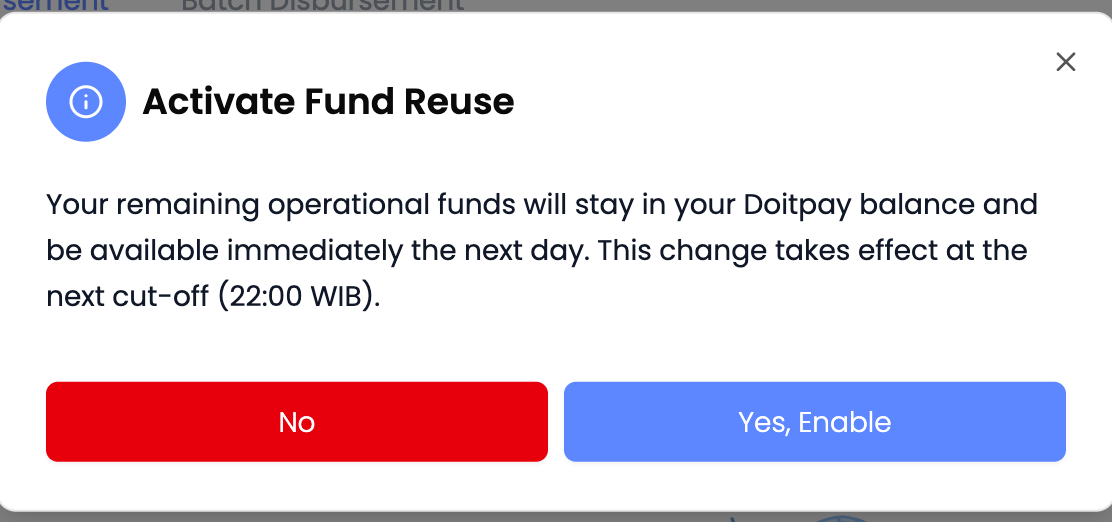
A Fund Reuse Activated message confirms the change.
Turning Fund Reuse Off
- Click the Reuse remaining funds for next day toggle
- Read the Disable Fund Reuse dialog
- Click Yes, Disable
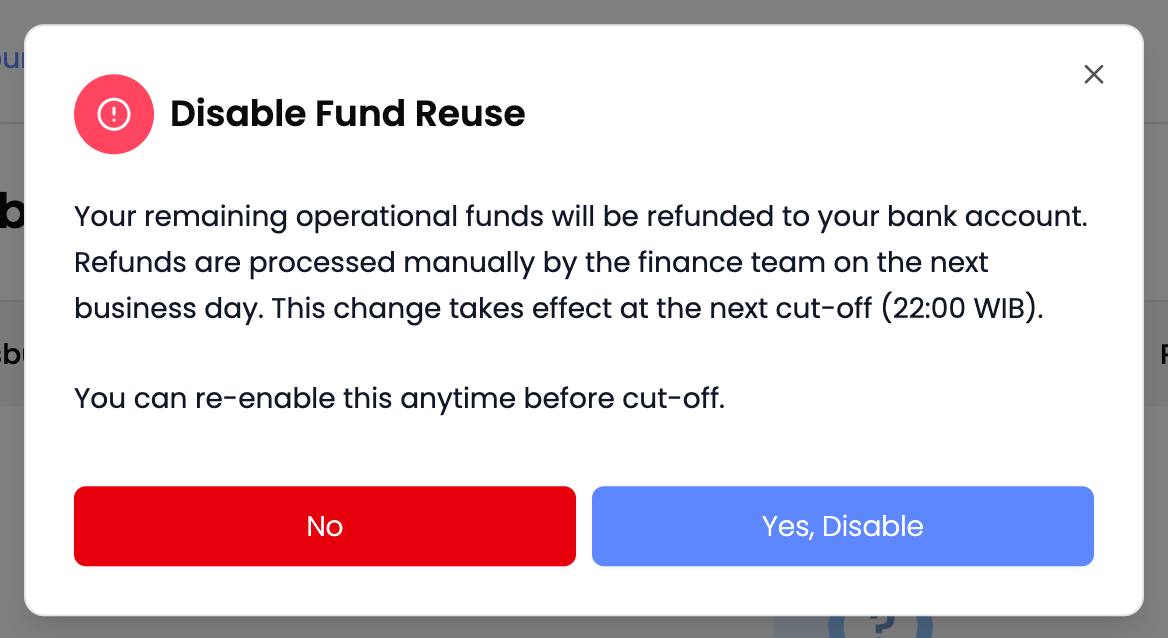
A Fund Reuse Disabled message confirms the change. Your remaining funds are refunded to the bank account registered on your business. The refund is processed by the Doitpay finance team on the next business day.
To keep things as they are, click No or close the dialog. Nothing is changed.
When a Change Takes Effect
Changes apply at the next cut-off at 22:00 WIB, never in the middle of a day. The setting in place at 22:00 is the one that counts.
| Example | What happens |
|---|---|
| You turn it off at 14:00 and back on at 21:00 | It is on at 22:00, so your funds stay in your balance |
| You turn it off at 14:00 and leave it off | Your remaining funds are refunded on the next business day |
| Your remaining balance is Rp 0 and the setting is off | Nothing is refunded, since there is nothing left |
Disbursements in progress
Disbursements that are still processing at 22:00 continue as normal. Turning the setting off does not cancel them.
Understanding the Disbursement Table
| Column | Description |
|---|---|
| Disbursement ID | Unique ID for this transfer |
| Transaction ID | Related transaction reference |
| Reference ID | Your tracking reference |
| Business Name | Which business made the transfer |
| Created At | When the transfer was initiated |
| Status | Current state of the transfer |
| Beneficiary Account Number | Recipient's bank account |
| Beneficiary Account Name | Recipient's name |
| Amount | Transfer amount |
| Fee | Processing fee |
| Description | Your notes |
| Disbursement Date | When transfer was completed |
Disbursement Status
| Status | Meaning | What to do |
|---|---|---|
| Success | Funds transferred successfully | None, recipient should receive funds |
| Pending | Transfer is being processed | Wait for completion (usually minutes) |
| Failed | Transfer could not complete | Check recipient details, retry if needed |
| Rejected | Transfer was rejected | Contact support for details |
Common Questions
Q: How long does a disbursement take?
Most transfers complete within minutes. Bank transfers to major banks are typically instant. Some banks may take longer during non-business hours.
Q: What are the fees for disbursement?
Fees vary by bank and are shown before you confirm the transfer. Check with your account manager for your specific fee structure.
Q: Why did my disbursement fail?
Common reasons include:
- Incorrect account number
- Account name mismatch
- Recipient bank issues
- Insufficient balance
Q: Can I cancel a disbursement?
Once submitted, disbursements cannot be cancelled. If the transfer fails, funds return to your balance automatically.
Q: What is the minimum/maximum disbursement amount?
Limits depend on your account configuration. Contact your account manager for your specific limits.
Q: How do I track a disbursement?
Use the Disbursement ID or Reference ID to search in the table. You can also export the list for detailed tracking.
Q: Is there a fee or a minimum amount for the end-of-day refund?
No. There is no fee and no minimum amount. Whatever remains in your balance at cut-off is refunded.
Q: I turned off Reuse remaining funds by mistake. Can I undo it?
Yes. Turn it back on any time before 22:00 WIB. The setting in place at 22:00 is the one that counts.
Q: Why can I not change the End-of-Day Fund Setting?
Only Superadmin users can change it. Ask a Superadmin on your business to update it.
Exporting Disbursement Data
Click Export in the toolbar and choose a format.
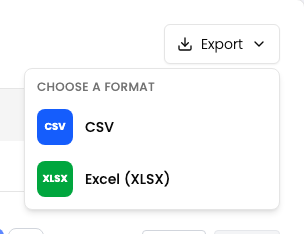
| Format | Best for |
|---|---|
| CSV | Plain data, importing into another tool, very large date ranges |
| Excel (XLSX) | Opening straight in Excel or Google Sheets with formatting preserved |
Use this to export all disbursement records. Set your date range and any other filters first, since the export matches what the table shows.
The file is prepared in the background instead of downloading straight away. After you choose a format, the dashboard opens Portal Download where the job appears. When its status shows COMPLETED, click Download on that row.
Filters travel with the export
The file matches what the table shows. If the table is filtered to one status, the file contains only those rows. Clear your filters first if you want everything.
Best Practices
- Verify account details before every transfer
- Use descriptions to identify payments later
- Keep your balance funded to avoid delays
- Use batch disbursement for multiple payments to save time
- Export records regularly for accounting purposes
- Monitor failed transfers and retry promptly
- Check your End-of-Day Fund Setting so your remaining funds are handled the way you expect at 22:00 WIB