
Business Switch
Switch between businesses in your Account Group and manage each business from one dashboard session.
Business Switch lets eligible Account Group users change the active business context from the sidebar. Use it when your organization has multiple businesses under one Account Group and you need to view or manage a specific business without logging out.
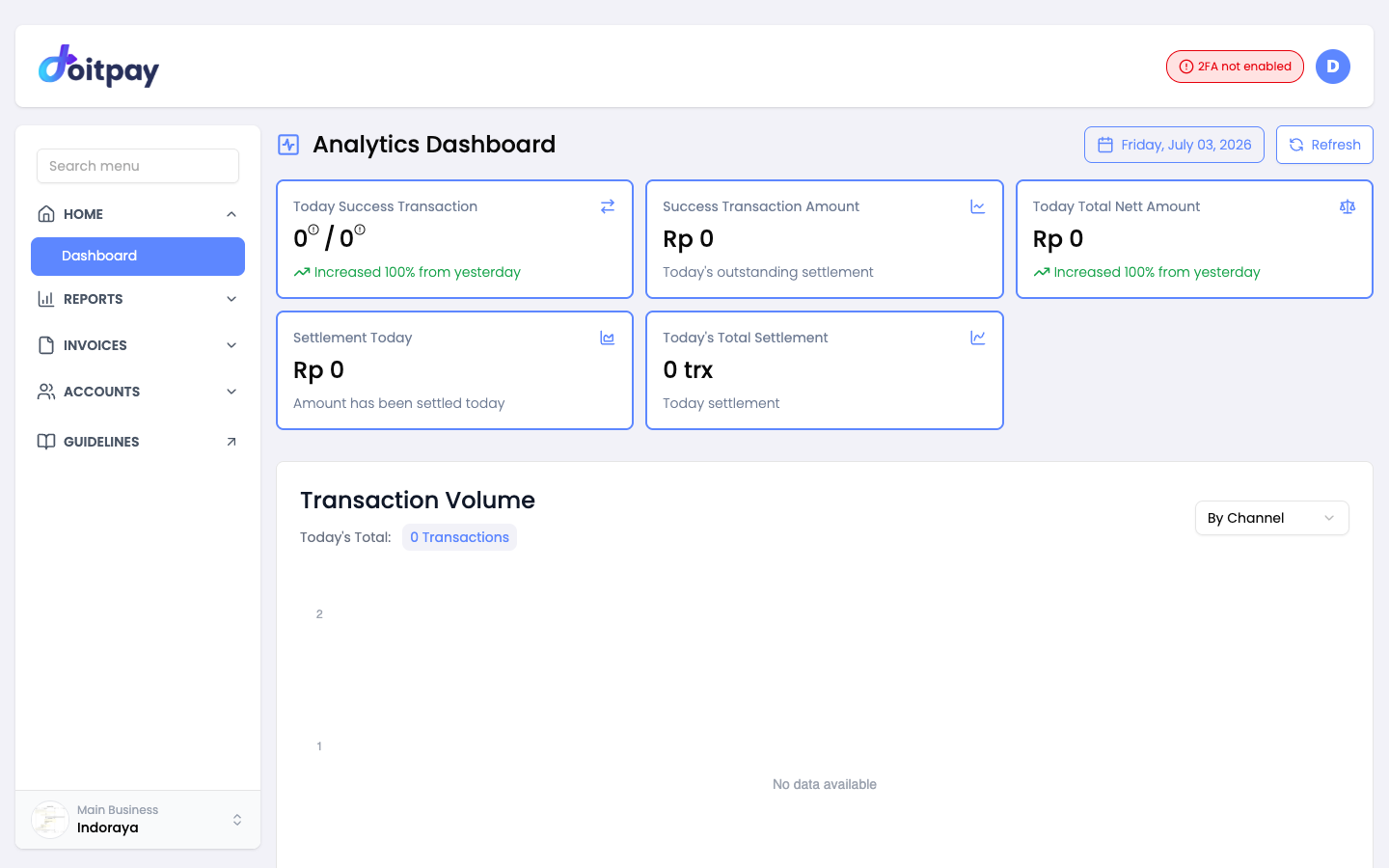
Who Can Use Business Switch
Business Switch is available only for superadmin users of the main business in an Account Group.
If you are a regular admin or a user who belongs to a sub business, your sidebar remains unchanged and you will only see your own business data.
Note
If you do not see the Business Switch option, your account may not be a main business superadmin, or your business may not be part of an Account Group.
Understanding Business Context
Doitpay organizes Account Group access like this:
Account Group
├── Main Business
└── Sub Business
When you switch business context, the dashboard reloads data for the selected business. This helps a main business superadmin review each business separately while staying in the same dashboard account.
Opening the Business Switcher
- Look at the bottom of the sidebar.
- Click the business name label.
- The Change Business window opens.
The business label shows the currently active business name. If the business name is long, it may be shortened in the sidebar.
Choosing a Business
Inside the Change Business window, you will see a list of businesses in your Account Group.
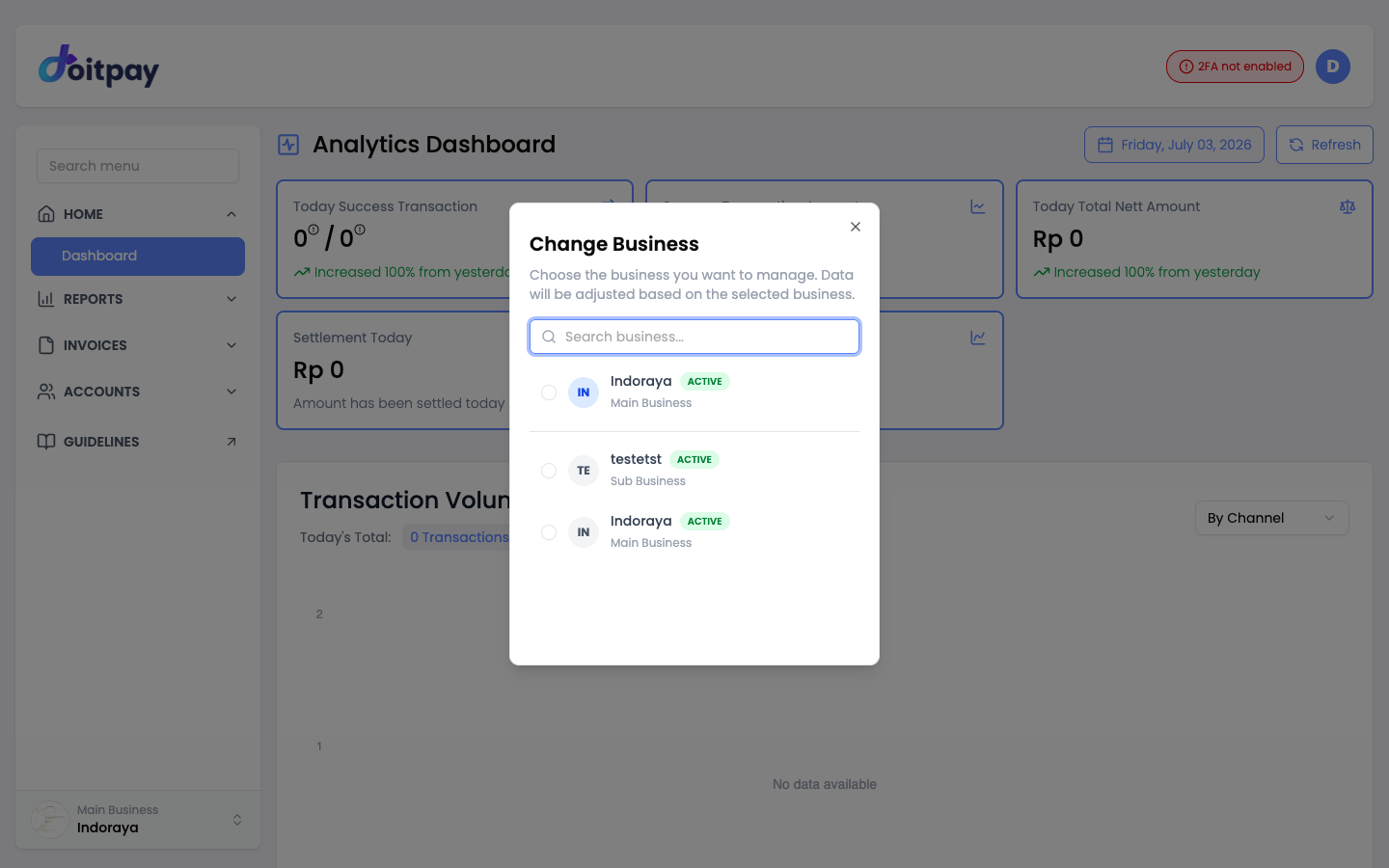
Each business entry shows:
| Field | Description |
|---|---|
| Business initials | Short initials generated from the business name |
| Business name | Name of the business you can switch to |
| Status | Whether the business is active |
| Business type | Whether it is the main business or a sub business |
To switch businesses:
- Click the business you want to manage.
- The window closes automatically.
- The dashboard reloads to the selected business context.
- The sidebar business label updates to the selected business name.
Switching businesses does not require logging out or logging in again.
Searching for a Business
Use the Search business... field to quickly find a business by name.
This is useful when your Account Group has many businesses.
Viewing a Sub Business
When you switch from your main business to a sub business, a banner appears at the top of the page:
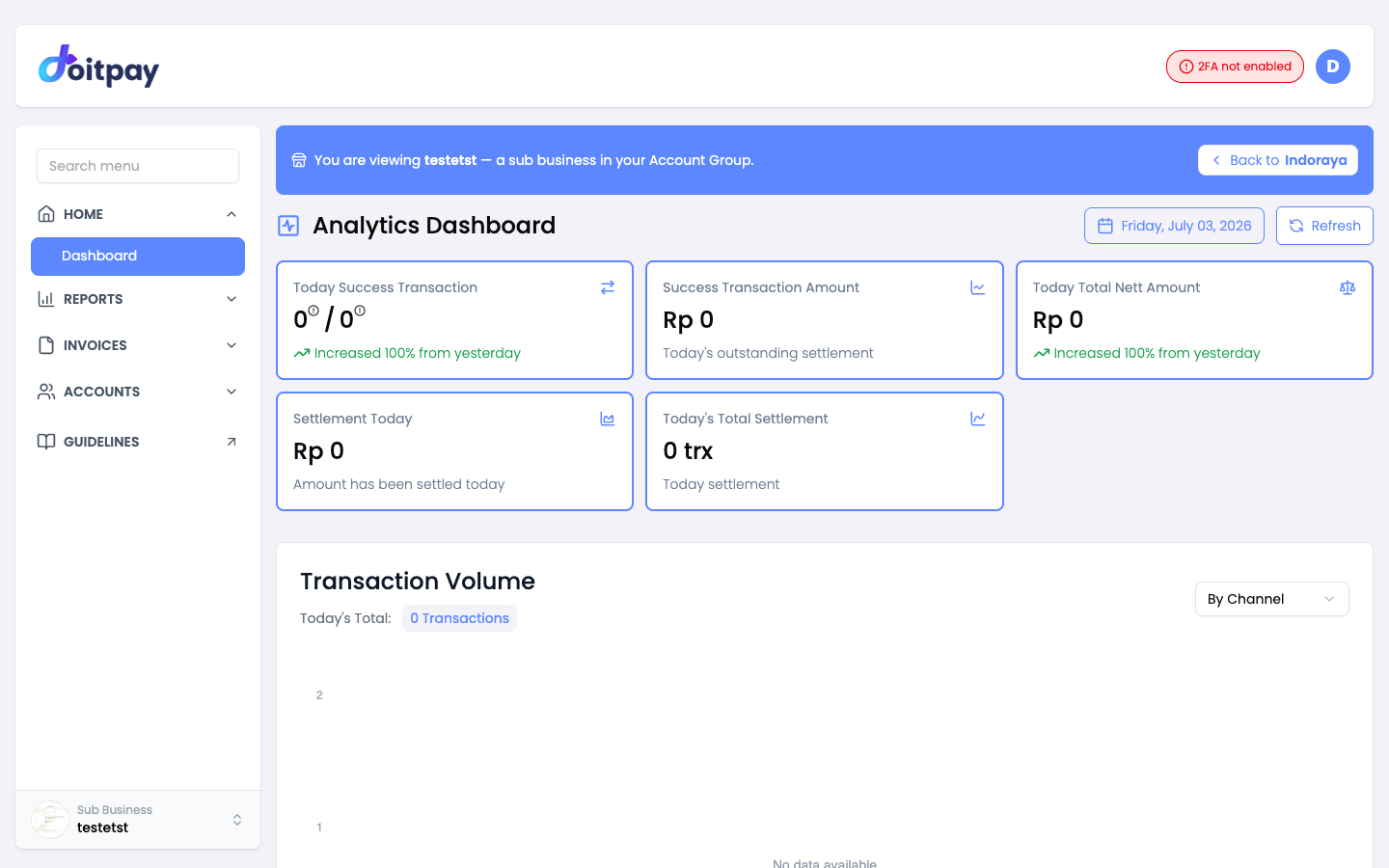
You are viewing [Business Name] — a sub business in your Account Group.
This banner reminds you that the dashboard is showing data for a sub business, not your main business.
The banner stays visible across dashboard pages while you are viewing the sub business.
Switching Back to Your Main Business
When viewing a sub business, click Back to [Main Business Name] in the banner to return to your main business.
You can also open the Business Switcher again and select your main business from the list.
What Changes After Switching
After you select a business, dashboard data is shown for that selected business.
This affects areas such as:
| Section | What changes |
|---|---|
| Dashboard | Analytics and transaction summary show the selected business |
| Reports | Transaction, Virtual Account, QRIS, Disbursement, E-Wallet, Credit Card, Settlement, Cash Flow, Direct Debit, and Portal Download show selected business data |
| Invoices | Payment Link and Deposit VA show selected business records |
| Accounts | Merchant list, Business Profile, and checkout settings show selected business information where applicable |
Important
Always check the business name in the sidebar or the viewing banner before reviewing transactions, downloading reports, or managing business information.
Business Switch and Reports
Some report pages previously had their own business filter. With Business Switch, the selected business is applied globally, so reports follow the active business context.
For example, if you switch to a sub business and open REPORTS > QRIS Payment, the QRIS report displays transactions for that selected sub business.
Pages That Stay Group-Level or User-Level
Some pages may not change exactly like transaction reports:
| Page | Behavior |
|---|---|
| Account Group | Still shows the Account Group overview and list of businesses |
| Manage Notifications | Notification preferences are based on your user account |
| Group Commission | Shows group-level information where available |
Common Tasks
| What you want to do | How to do it |
|---|---|
| View a sub business dashboard | Open Business Switcher, select the sub business |
| Return to main business | Click Back to [Main Business Name] in the banner |
| Find a business quickly | Use Search business... in the switcher |
| Confirm which business you are viewing | Check the sidebar business label or the banner |
| Download a report for a business | Switch to that business first, then open the report and click CSV |
Common Questions
Q: Why don't I see Business Switch?
Business Switch is only available for superadmin users of the main business in an Account Group. Other users continue to see their own business only.
Q: Does switching business change my login account?
No. You remain logged in with the same user account. Only the active business context changes.
Q: Can I view all businesses combined?
No. Business Switch shows one business at a time. Use ACCOUNTS > Account Group for the Account Group overview.
Q: Can I create a new business from Business Switch?
No. Business creation is not available from the switcher. Contact your account manager if you need to add a business.
Q: What happens if a business is inactive or removed?
If a business is no longer available, you may be returned to your main business. Contact your account manager if you think access is missing.
Q: Do I need to switch business on every report page?
No. After you select a business, the dashboard keeps that business context as you navigate between pages.